Insight
Insight is the developer experience layer for Intrig-generated SDKs. It provides searchable API documentation with copy-paste code examples, enabling rapid endpoint discovery during implementation without context-switching to raw OpenAPI specifications or digging through node_modules.
Core purpose: Reduce lookup time to near-zero during implementation.
Primary interface: Command palette search (⌘K) for instant endpoint and schema lookup.
Quick Start
Launch Insight from any Intrig project:
intrig insight
Opens the web interface at http://localhost:5050. The daemon starts automatically if not running.
Dashboard
The dashboard provides an overview of all configured API sources and global search access.
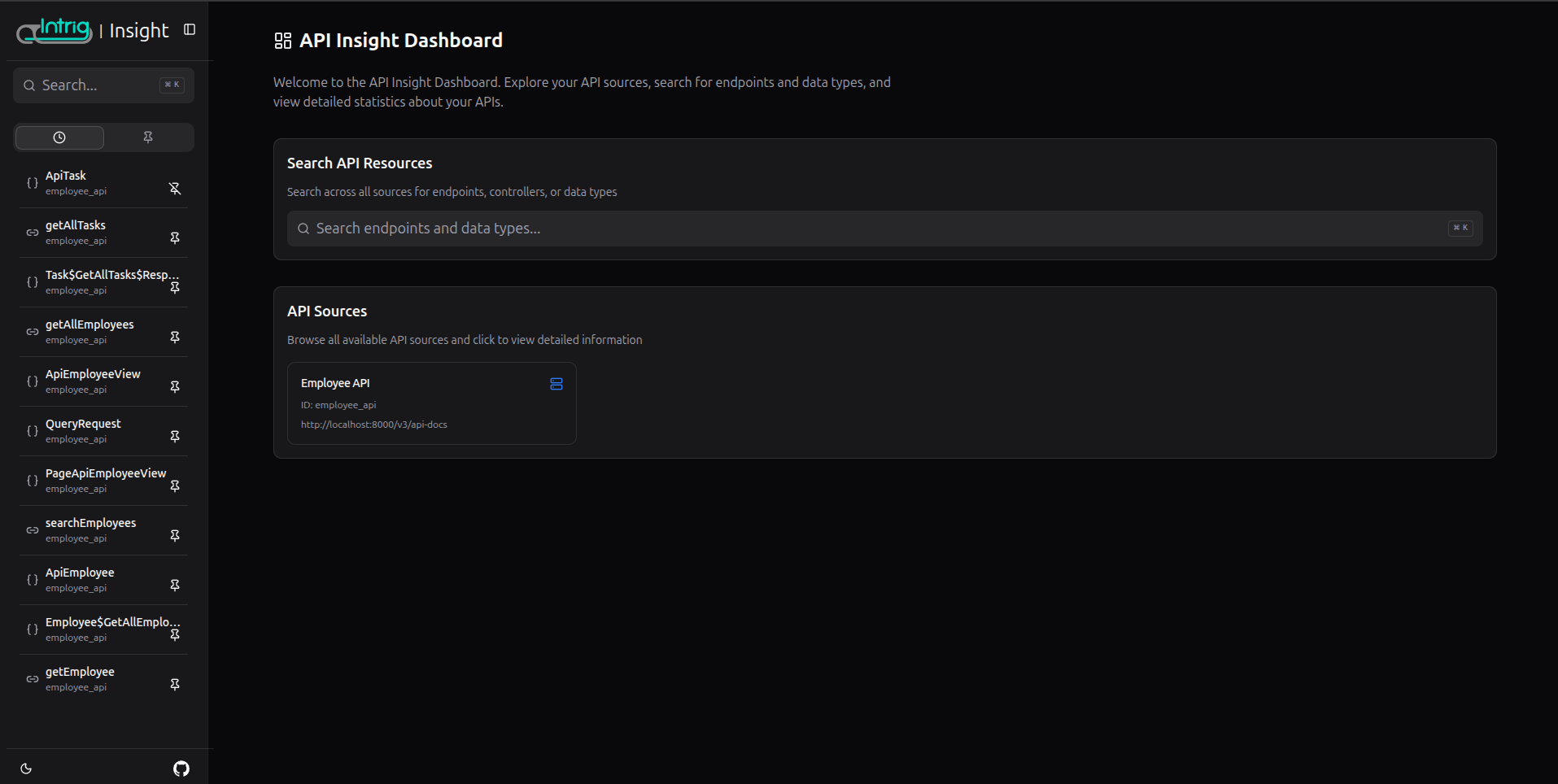
Dashboard elements:
- Global search: Search across all sources for endpoints, controllers, or data types
- API Sources: Cards displaying each configured source with ID, name, and spec URL
Click any source card to explore its endpoints and schemas.
Source View
Each API source displays its configuration metadata and browsable resources.
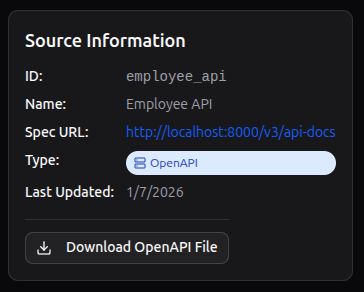
Source information:
- Source ID and display name
- Spec URL (clickable to view raw OpenAPI)
- Specification type (OpenAPI 3.0/3.1)
- Last synchronization timestamp
- Download button for local spec copy
Browsing Resources
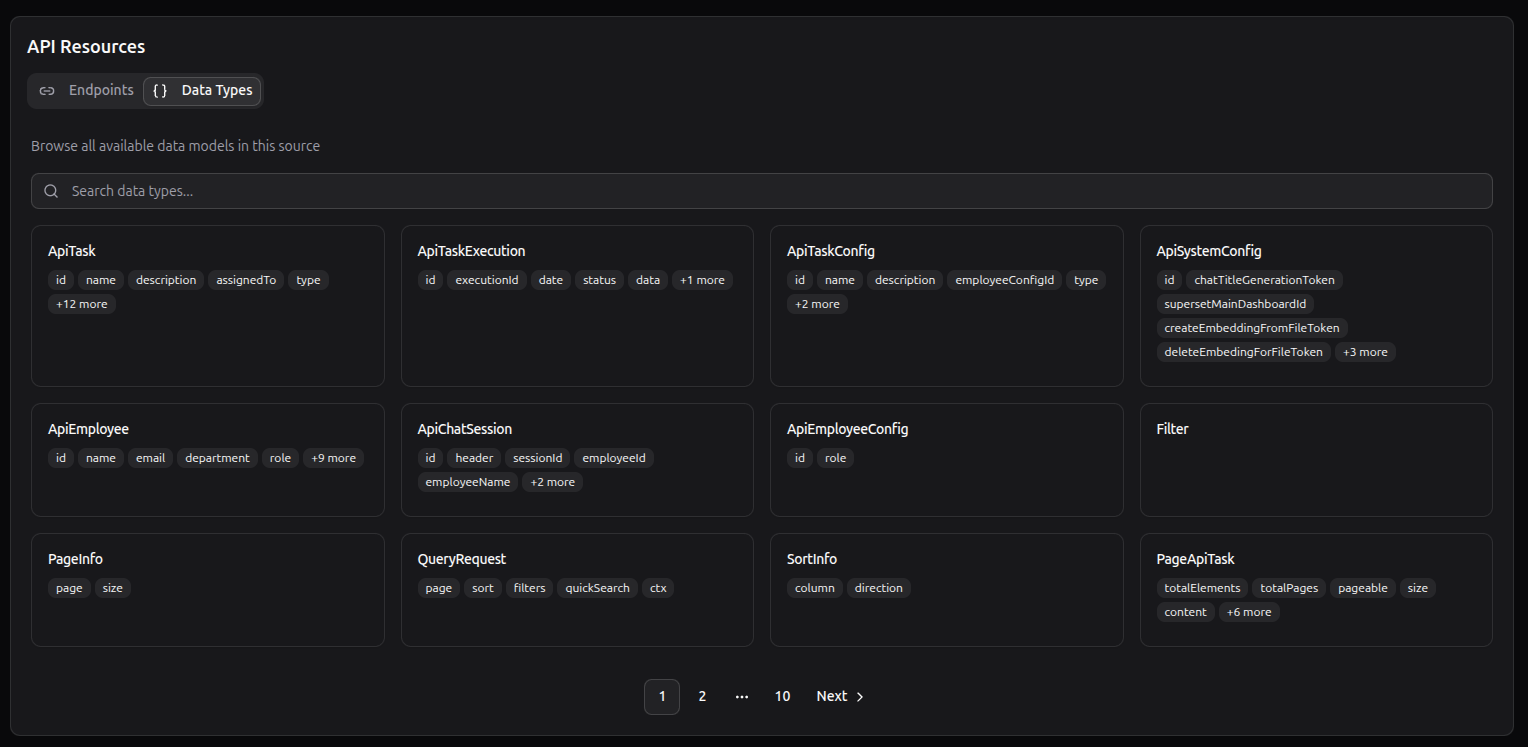
Resources are organized into two tabs: Endpoints and Data Types.
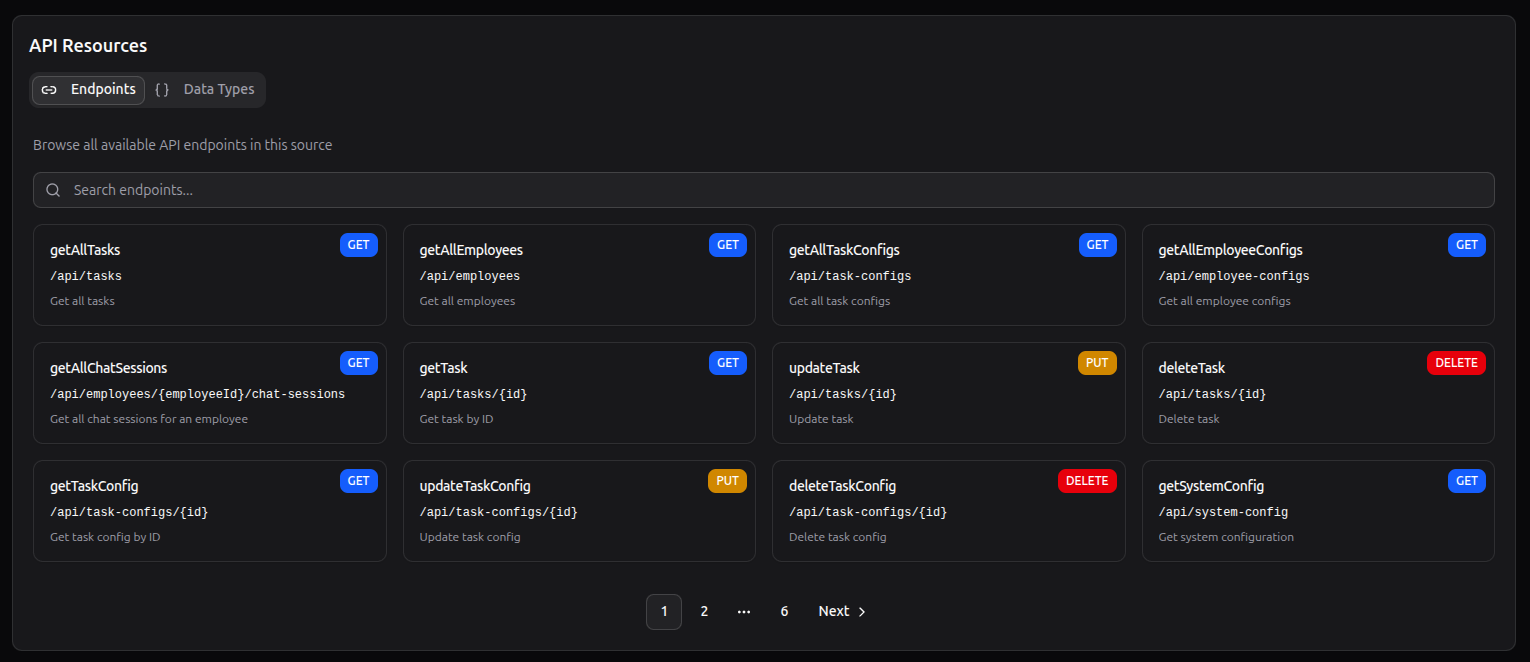
Endpoints tab: Grid of operation cards showing operation name, HTTP method badge (color-coded), path, and description. Pagination for large APIs.
Data Types tab: Grid of schema cards showing schema name and property preview tags with overflow indicators for complex types.
Both tabs include inline search for filtering within the current source.
Command Palette Search
The primary interface for endpoint discovery. Access via the search bar or keyboard shortcut ⌘K (Ctrl+K on Windows/Linux).
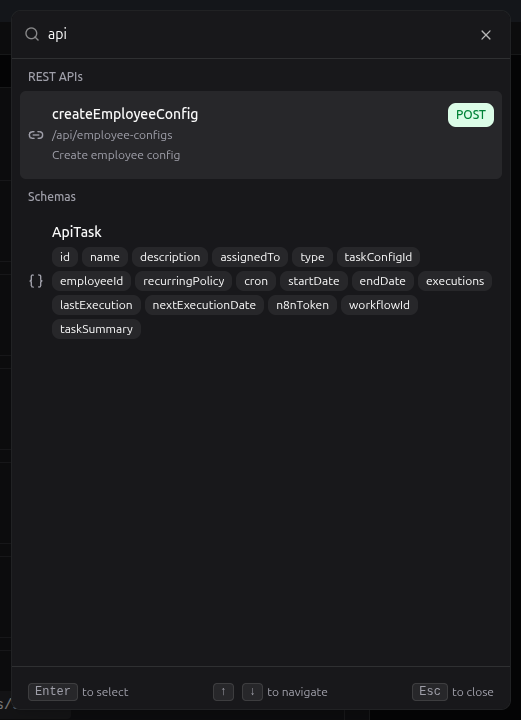
Search behavior:
- Real-time filtering as you type
- Searches across endpoint names, paths, descriptions, and schema names
- Results grouped by resource type (REST APIs, Schemas)
- Method badges (GET, POST, PUT, DELETE) for visual scanning
Keyboard navigation:
↑↓to navigate resultsEnterto selectEscto close
Search targets:
- Operation IDs (
getAllTasks,createEmployee) - URL paths (
/api/tasks,/employees/{id}) - HTTP methods (
GET,POST) - Schema names (
ApiTask,UserResponse) - Descriptions and parameter names
This is the interface developers use mid-implementation. The workflow: hit ⌘K, type a few characters, select the endpoint, copy the import path, return to code.
Endpoint Documentation
Endpoint pages provide complete implementation reference for each API operation.

Overview Tab
The Overview tab is always present regardless of framework. It displays the API contract:
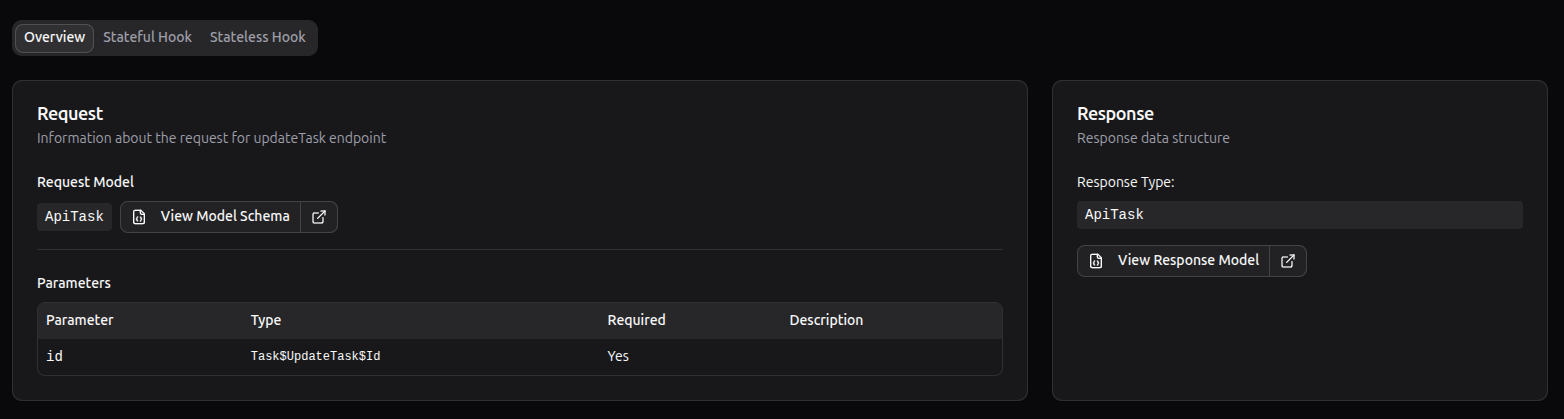
- Header: HTTP method badge, path, operation description
- Request section: Parameters (path, query, header) and request body schema
- Response section: Response type with link to schema details
This tab answers "what does this endpoint accept and return?" independent of how the generated SDK exposes it.
Framework Tabs
Framework tabs are the key piece of information provided by Insight. Each framework plugin contributes tabs showing generated code patterns native to that framework—React hooks, Next.js server functions, Angular services, and so on.
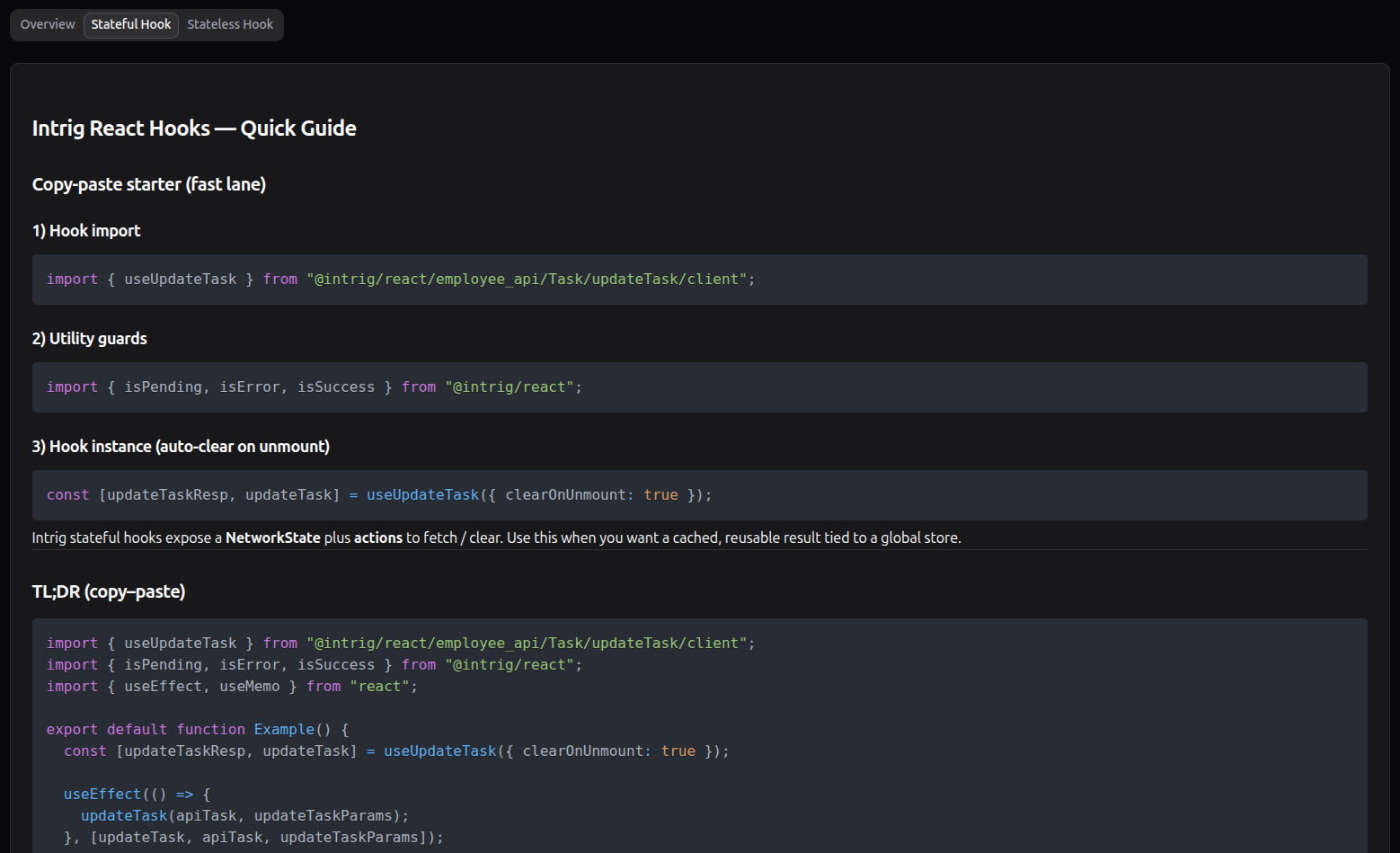
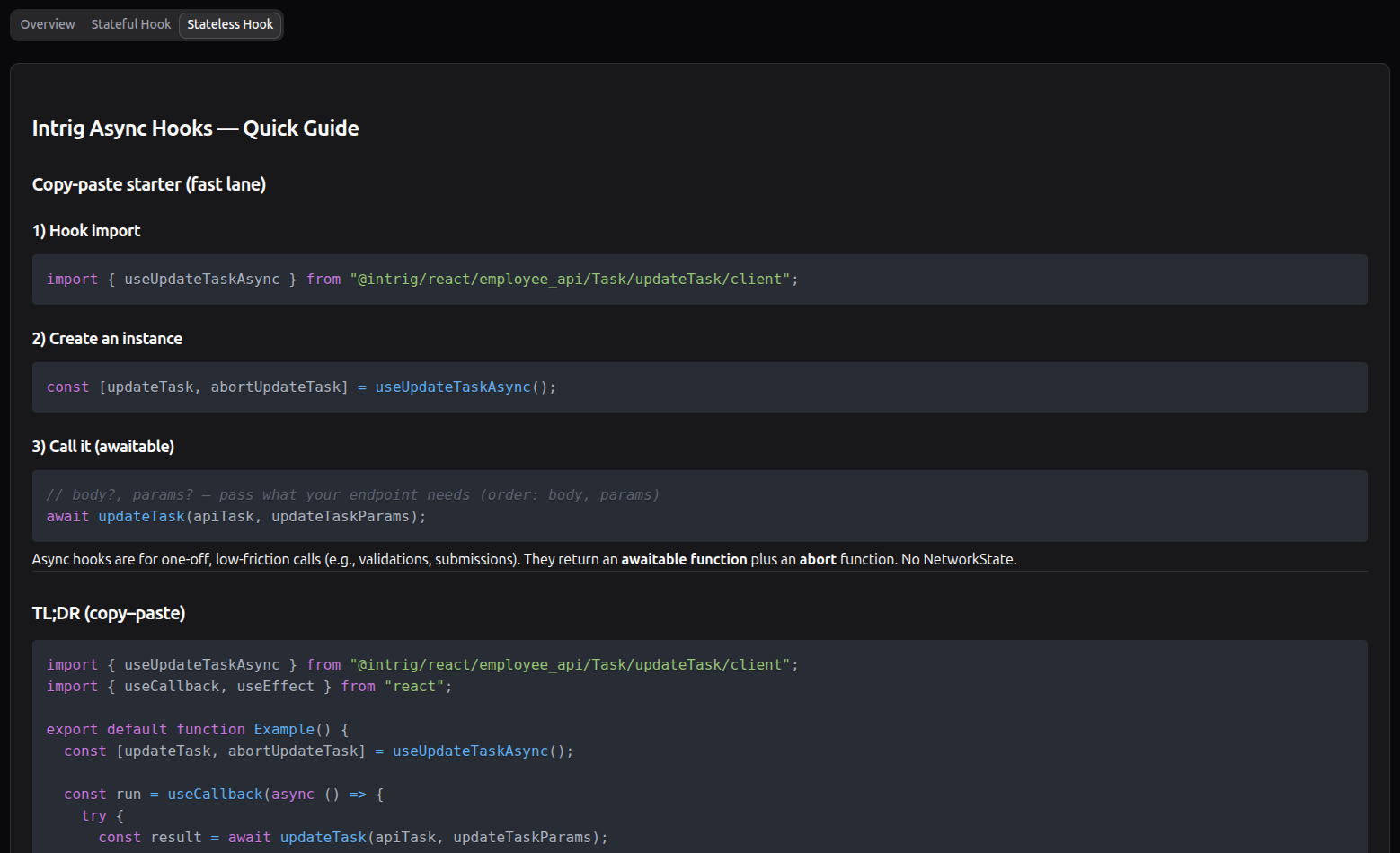
These tabs provide:
- Direct import paths for copy-paste
- Complete usage examples with proper typing
- Framework-specific patterns and best practices
- Selection guides when multiple patterns are available
The plugin determines what tabs appear. Insight renders whatever the plugin provides, ensuring documentation always matches the generated code.
Schema Documentation
Schema pages provide type definitions in multiple formats for different use cases.
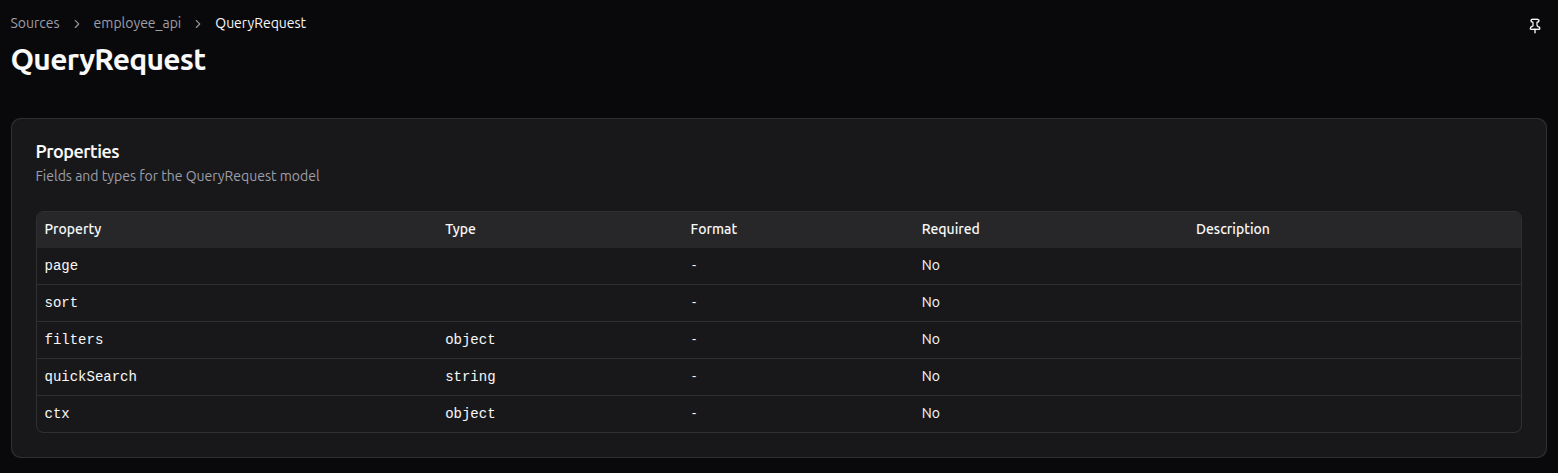
Properties Table
Tabular view of all schema fields with:
- Property name
- Type (with format annotation where applicable)
- Required indicator
- Description
Useful for quick reference during form building or response handling.
TypeScript Type
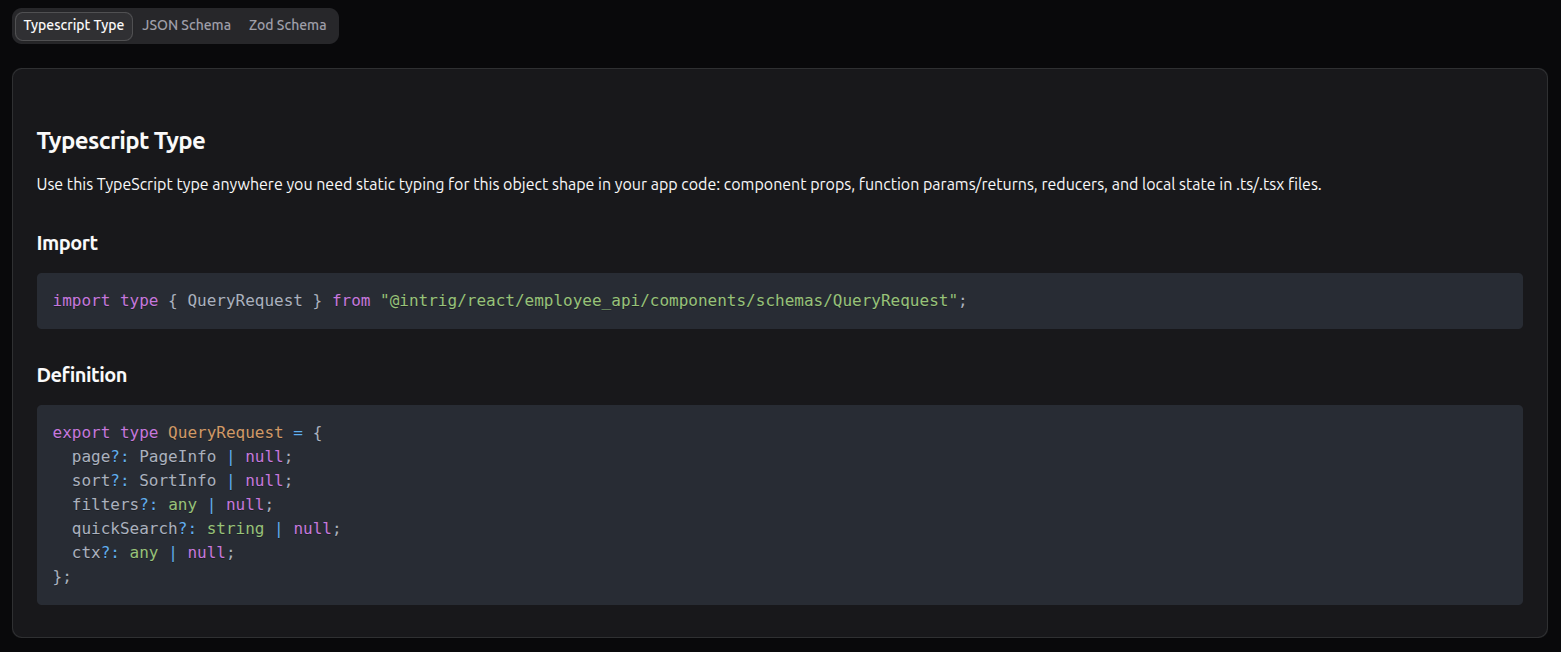
Generated TypeScript interface for static typing:
- Import statement with exact path
- Complete type definition with optional markers and union types
Use for component props, function parameters, reducers, and local state typing.
JSON Schema
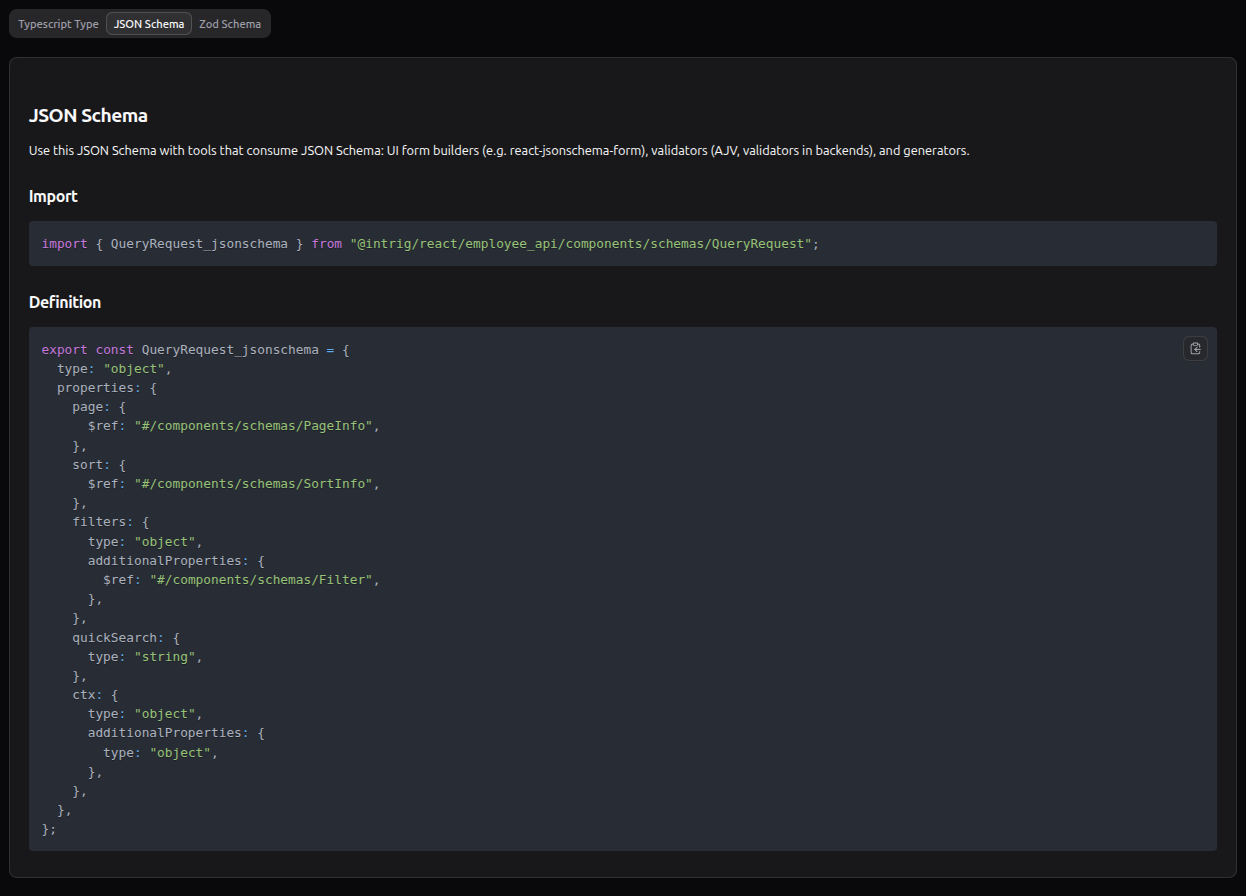
Standard JSON Schema for tools that consume it:
- Form builders (react-jsonschema-form)
- Validators (AJV)
- Backend validators
- Code generators
Zod Schema
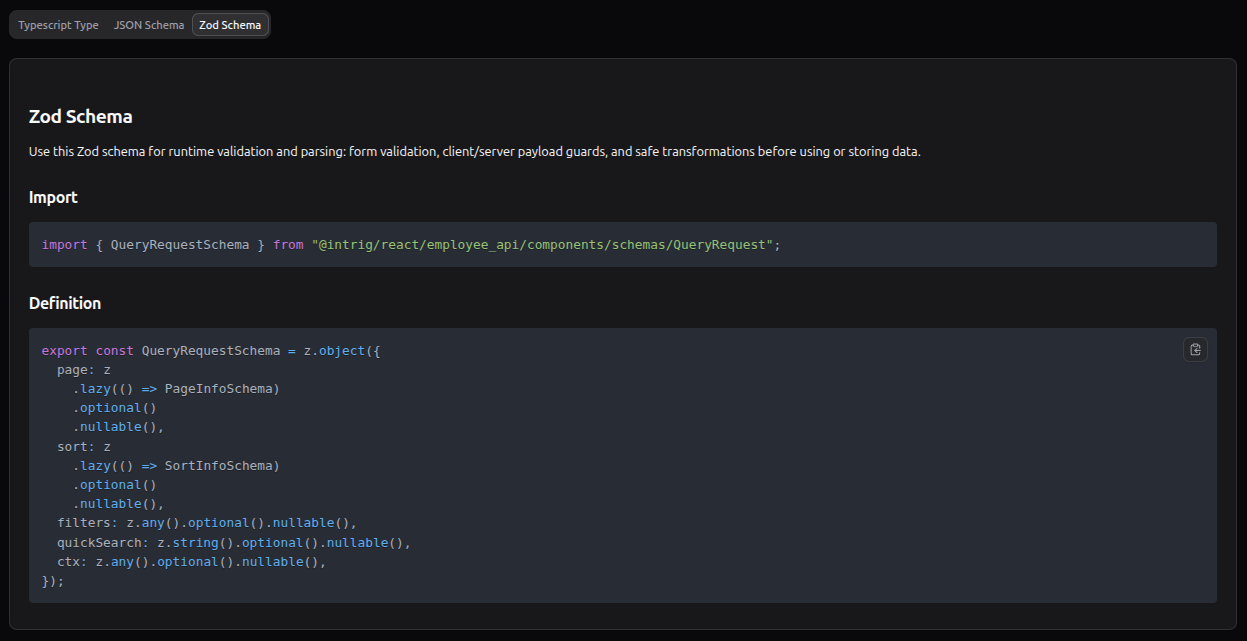
Generated Zod schema for runtime validation:
- Form validation
- API response parsing with safe transformations
- Client/server payload guards
Note the z.coerce.date() transforms for date-time fields—the generated schema handles string-to-Date conversion automatically.
Related Endpoints
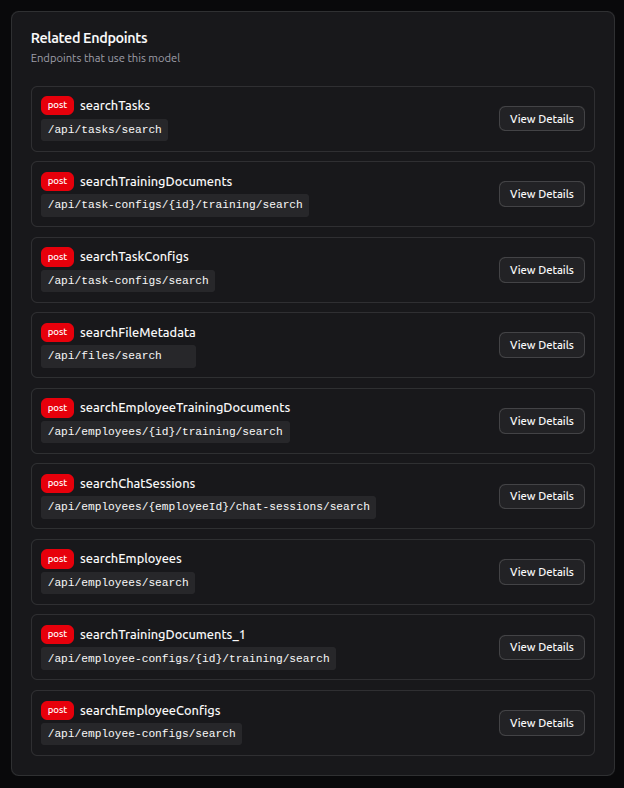
Cross-reference showing which endpoints use this schema. Click through to endpoint documentation for implementation details.
Navigation: Recents & Pinned
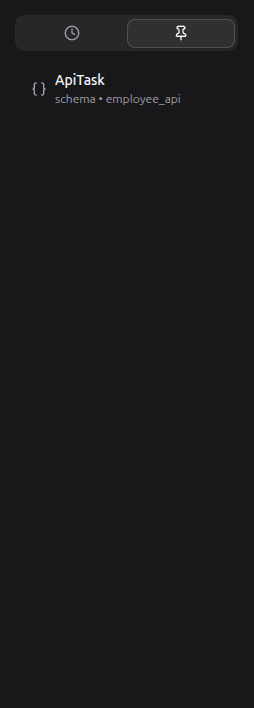
The left sidebar provides two navigation modes for accessed resources.
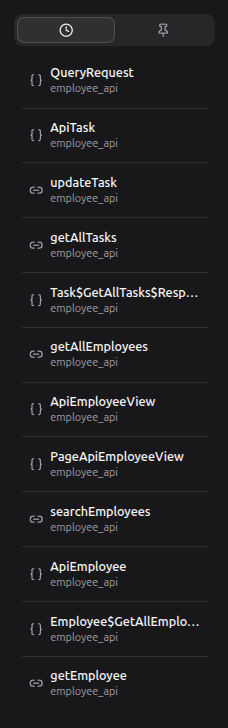
Recents Tab
Chronological list of recently viewed endpoints and schemas. Each item shows:
- Resource name
- Resource type icon (endpoint or schema)
- Source identifier
History persists across sessions.
Pinned Tab
Bookmarked resources for quick access during active development. Pin items using the pin icon on any resource page.
Use pinned items for endpoints you're actively implementing against. Clear pins when moving to a different feature area.
Development Workflow Integration
During Implementation
- Working on a feature that calls an API
- Hit ⌘K, type endpoint name or path fragment
- Select endpoint from results
- Copy import statement from Stateful or Async tab
- Reference parameters and response type
- Return to editor, paste, implement
Total context-switch time: seconds.
Schema Reference
When building forms or handling responses:
- Navigate to endpoint or search for schema directly
- Switch to relevant format tab (TypeScript for typing, Zod for validation)
- Copy import and definition
- Reference property table for field-level details
Type Discovery
When TypeScript shows a type you don't recognize:
- Search for the type name in Insight
- View the properties table for structure
- Check Related Endpoints to understand where it's used
Related Documentation
- Daemon Management - Daemon lifecycle and troubleshooting
- Synchronization - Keeping specifications current
- CLI Reference - Complete command documentation